Broadband Router 2026
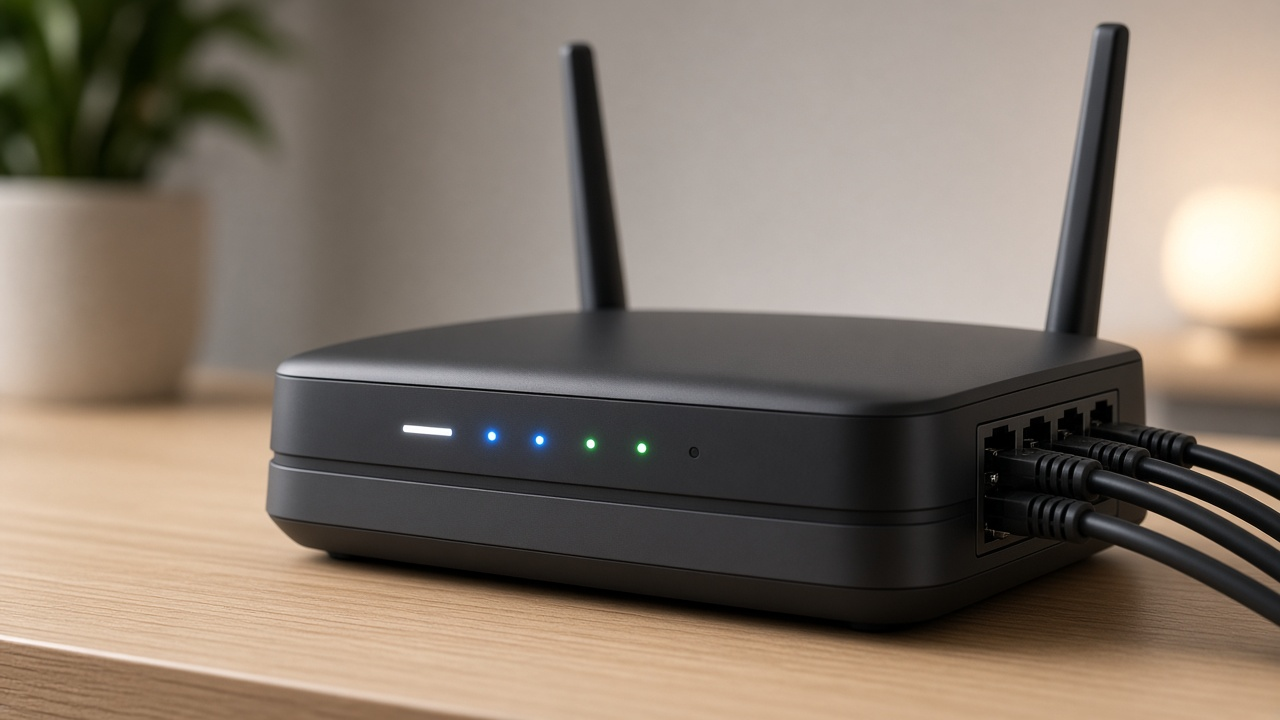
Broadband Routers: The Backbone of Modern Internet Connectivity 2026
Broadband refers to high-capacity transmission that enables a wide range of frequencies to carry data, voice, and video over multiple channels simultaneously. Unlike dial-up, which operates through a single line with limited speed, broadband delivers consistently high internet speeds, supporting everything from HD streaming to real-time collaboration tools. It's the standard for both residential and commercial internet access.
To convert this fast, always-on connection into usable Wi-Fi or Ethernet access for multiple devices, a broadband router stands at the core of the setup. The router acts as a traffic director, assigning IP addresses, managing data flow, and ensuring that connected devices, whether wired or wireless, access the internet efficiently. Without a broadband router, a broadband connection would remain a raw data stream—unusable for most devices in homes or offices. Curious how this compact device handles such a robust job? Let’s look deeper into what makes broadband routers indispensable.
The Evolution of Wi-Fi Standards and the Arrival of Wi-Fi 6
Wireless connectivity has undergone decades of transformation, each generation refining how users access and share data across devices. Understanding the progression from the earliest Wi-Fi protocols to Wi-Fi 6 clarifies the profound impact of modern broadband routers on everyday connectivity.
From 802.11a to 802.11ax: A Timeline of Wireless Standards
Wi-Fi technology officially began in 1997 with the release of the 802.11 standard, but the evolution truly took off with its subsequent iterations:
- 802.11a (1999) – Operated on the 5 GHz band, offered speeds up to 54 Mbps. Ideal for performance but had limited range due to higher frequency.
- 802.11b (1999) – Used the 2.4 GHz band with maximum speeds of 11 Mbps. Gained popularity due to lower cost and broader range.
- 802.11g (2003) – Combined the speed of 802.11a with the range of 2.4 GHz, delivering up to 54 Mbps.
- 802.11n (2009) – Introduced MIMO (Multiple Input Multiple Output) technology, boosting theoretical speeds up to 600 Mbps and significantly improving reliability.
- 802.11ac (2013) – A major leap, utilizing the 5 GHz band with better channel bonding, higher throughput, and support for MU-MIMO. Max theoretical speed: 3.46 Gbps.
- 802.11ax (Wi-Fi 6) – Finalized in 2021, it builds on ac’s framework with better efficiency, reduced latency, and higher user capacity across both 2.4 GHz and 5 GHz frequencies.
With each iteration, the focus shifted from just faster data rates to better performance in crowded environments, enhanced energy efficiency, and smarter handling of simultaneous device connections. That design pivot sets Wi-Fi 6 apart.
Why Wi-Fi 6 Changes the Game for Broadband Users
Wi-Fi 6 routers deliver up to four times the capacity of Wi-Fi 5 while maintaining similar peak throughput—9.6 Gbps max speed across multiple devices compared to Wi-Fi 5’s 3.5 Gbps for individual streams. This isn't just about browsing faster. It's about sustaining high-speed connections across smartphones, laptops, smart TVs, and IoT devices simultaneously, even under network strain.
Some of the defining features include:
- OFDMA (Orthogonal Frequency Division Multiple Access) – Enables multiple devices to share a single channel, reducing latency and improving spectral efficiency.
- TWT (Target Wake Time) – Optimizes device wake periods, cutting down power consumption for connected devices, especially beneficial for battery-powered IoT products.
- Enhanced MU-MIMO – Allows eight simultaneous downstream clients compared to Wi-Fi 5’s four, doubling the capacity for parallel activity.
In real-world terms, Wi-Fi 6 lowers congestion in high-density environments. Households with video streaming, online gaming, and videoconferencing all happening at once experience fewer slowdowns or interruptions. The performance leap is not theoretical—it's observable in daily Mbps measurements and reduced retry rates.
Dual Band Functionality: Still Relevant, Now Smarter
Wi-Fi 6 routers retain dual-band functionality, operating on both 2.4 GHz and 5 GHz frequencies. The lower-frequency 2.4 GHz band covers longer distances and better penetrates walls—ideal for older devices or smart home hubs. In contrast, the 5 GHz band handles high-bandwidth tasks like 4K streaming or cloud gaming with lower interference.
With Wi-Fi 6, dual-band is enhanced through smarter band steering. Routers dynamically assign devices to the most appropriate band based on real-time demand and signal quality, not just proximity. This optimization ensures higher cumulative throughput and balanced load distribution, especially critical in multi-user demand scenarios.
Locking Down Your Digital Gateway: Ensuring Network Security with Your Broadband Router
Why Router Security Demands Attention
Your broadband router serves as the frontline gatekeeper to your entire digital environment. Every connected device — from laptops and phones to smart thermostats and video doorbells — relies on this access point. Compromising the router opens a direct channel to compromise everything behind it. Cyberattacks targeting home routers have multiplied in scope and sophistication. In 2023 alone, researchers at Kaspersky observed a 90% increase in router-related vulnerabilities compared to the previous year, many enabling full remote control by attackers.
Threats like DNS hijacking, man-in-the-middle attacks, and unauthorized remote access often start with an unsecured router. Once inside, attackers can intercept sensitive data, manipulate traffic, and even inject malware. The router isn’t just part of your network — it defines the security of your entire online experience.
Security Features Worth Prioritizing When Choosing a Router
Modern routers offer a diverse range of built-in protections, but not all models deliver the same level of defense. Here's what to look for:
- WPA3 encryption: Replaces WPA2 to prevent brute-force password cracking and improve key management. As of 2024, most mid-to-high-end routers support WPA3, enhancing protection on public and private networks.
- Automatic firmware updates: Routers with this feature eliminate manual patching delays. This behavior dramatically reduces exposure windows for known exploits.
- Built-in firewalls: An SPI (Stateful Packet Inspection) firewall monitors traffic patterns and blocks suspicious activity by default.
- Device access control: MAC address filtering and client lists let users define exactly who or what can access the network.
- Secure remote management: Routers supporting HTTPS or VPN-only remote admin access avoid excessive risk from cloud-based logins.
Additional protections like DoS attack prevention, IP reputation tracking, and vulnerability scanning are commonly found in routers labeled as “Secure by Design” or built for SMB networks.
Firmware Updates: Your Router’s Invisible Armor
Firmware acts as the router's operating system, controlling its behavior and security mechanisms. Like any OS, vulnerabilities emerge over time, and firmware updates provide the patches that resolve them. Neglecting these updates creates long-term exposure. For instance, the notorious VPNFilter malware exploited unpatched firmware in over 500,000 consumer and small-business routers across 54 countries in 2018 — even years after vendor fixes were released.
Most users never check their router firmware version. Yet this simple action dramatically reduces the risk of zero-day vulnerabilities. Vendors such as ASUS, Netgear, and TP-Link now offer mobile apps and auto-update features to streamline the process. When evaluating any broadband router, find out whether it pushes firmware updates silently or requires user intervention — the difference impacts your overall posture.
Ultimately, maintaining tight router security shifts the balance of power back to the user. Updating firmware, selecting a router with current encryption protocols, and making use of its built-in security features will transform this often-overlooked device into an effective line of defense.
Mastering Router Setup and Configuration
Step-by-Step Guide on Setting Up a New Broadband Router
Unboxing a broadband router is just the beginning. The real work begins when the cables connect and the LEDs come alive. Follow these steps to initialize your device correctly:
- Connect your router to the modem: Use an Ethernet cable to link the router’s WAN or Internet port to your modem’s LAN port. This connection enables the router to distribute internet signals across devices.
- Power up: Plug in the router and turn it on. Wait for the indicator lights to stabilize—typically, this takes between 60 and 90 seconds.
- Open a web browser: On a connected device, type the router's default IP address (commonly 192.168.1.1 or 192.168.0.1) into the address bar.
How to Access Router Settings and Configure Basic Options
Once inside the web interface, configuration begins in the admin console. Routers from brands like Netgear, TP-Link, Asus, and Linksys generally use similar menu layouts, though icons and labels may differ.
- Log in to the admin portal using the default username and password found on the hardware label or device manual.
- Run the setup wizard if available. This tool guides you through regional settings, ISP protocol detection, and basic Wi-Fi customization. Some routers automatically detect dynamic IP versus PPPoE, while others require manual selection.
- Change Wi-Fi network names (SSID) and assign individual names for 2.4 GHz and 5 GHz bands to optimize performance across various devices.
- Set wireless security to WPA3 if supported, or at least WPA2. This step encrypts traffic between devices and the router.
Modern routers may also support mobile configuration through apps. TP-Link’s Tether, Asus Router, or Netgear’s Nighthawk apps streamline management via smartphone, allowing access to network maps, firmware updates, and traffic settings in real-time.
Why Changing Default Admin Credentials Matters
Leaving the default login credentials unchanged gives unauthorized users a backdoor into your network. A 2021 study from Palo Alto Networks revealed that over 11% of enterprise IoT devices were compromised due to unchanged factory credentials.
To secure access:
- Access the admin settings via the router dashboard.
- Create a new strong username and password using a combination of uppercase and lowercase letters, numbers, and symbols. Aim for at least 12 characters.
- Log out after updating, then log in again using the new credentials to confirm changes.
Changing admin login details eliminates a common vector for unauthorized access and dramatically reduces vulnerability to scripted attacks targeting consumer routers.
All About Modem-Router Combos
Understanding the Integrated Design
A modem-router combo merges two essential network devices into one: the modem connects to your ISP to bring internet into your home, while the router distributes that connection to your devices via Wi-Fi or Ethernet. By housing these components together, a combo unit simplifies home networking for users who want streamlined setup and management.
ISPs often supply modem-router combos as default equipment for household broadband connections. These units are typically pre-configured, which minimizes technical barriers for non-expert users. This plug-and-play approach reduces the time between installation and internet access.
Advantages of Modem-Router Combo Units
- Space-saving design: A single compact device takes up less room than two separate boxes, which is useful in apartments and small offices.
- Simplified setup: With fewer cables and fewer configuration steps, setup is more straightforward for most households.
- ISP support: ISPs can remotely manage and troubleshoot supported combo units, streamlining technical support processes.
- Lower initial cost (in some cases): Purchasing a combo unit may be more affordable than buying a separate modem and router, particularly when bought through the ISP.
When to Rethink the Combo Route
Despite their convenience, modem-router combos come with trade-offs that limit flexibility and upgradability. High-performance users, gamers, and those with complex smart home setups often bypass these units in favor of standalone components. Here’s why:
- Fewer upgrade options: Combo units lock both modem and router technologies into one device. To upgrade Wi-Fi standards or DOCSIS versions, the whole unit must be replaced.
- Limited custom configuration: Advanced features—such as VLAN setups, dynamic QoS, or high-level parental controls—may be unavailable or restricted.
- Performance ceiling: Many combo units don't match the processing power, antenna array, or range of premium standalone routers.
- ISP firmware control: When leased from providers, ISPs often lock users out of admin settings, affecting control over security and customization.
Key Factors to Evaluate Before Buying
Consider internet speed tiers, total number of connected devices, dwelling size, and expected data usage. Combo units perform well in smaller homes with moderate connected device loads, such as a few phones, a smart TV, and a work laptop. Larger homes with dozens of devices—especially ones streaming 4K or using smart automation—are likely to require dedicated routers with more bandwidth and feature control.
Compatibility also plays a role. Not every combo modem supports every cable or fiber ISP. Users need to match DOCSIS specification (such as DOCSIS 3.1 for gigabit cable plans) and Wi-Fi standard (e.g., Wi-Fi 6 or Wi-Fi 6E) with what their ISP and home environment demand.
Is simplicity your top priority, or do you want more granular control over your network settings? Define your expectations upfront—because that will determine whether a modem-router combo enhances or restricts your connectivity experience.
Understanding Ethernet and LAN Ports in Broadband Routers
The Unseen Backbone: Ethernet Ports and High-Speed Connectivity
While Wi-Fi garners most of the attention, Ethernet ports remain irreplaceable for any broadband router setup seeking peak performance. These physical connections bypass the variability of wireless signals, ensuring consistent speeds with lower latency and zero signal interference.
Ethernet ports on routers typically adhere to the Gigabit standard, offering up to 1,000 Mbps of throughput. Entry-level routers may include Fast Ethernet ports, limited to 100 Mbps—this bottlenecks modern fiber or cable broadband plans, which often exceed 300 Mbps. In contrast, high-end routers feature multi-gig Ethernet (2.5G, 5G, or even 10G), enabling fully optimized performance in data-heavy environments such as 4K/8K streaming, gaming, or local file transfers over NAS.
With structured cabling—Cat 5e at a minimum, Cat 6 or Cat 6a preferred—Ethernet outperforms wireless networks in bandwidth, latency, and reliability. For households with smart TVs, workstations, or game consoles, a wired Ethernet connection removes the guesswork from connectivity.
LAN vs WAN: Two Ports, Two Purposes
On any broadband router, each Ethernet port has a specific role. Recognizing the distinction allows for seamless installation and efficient troubleshooting.
- WAN Port (Wide Area Network): This is the gateway. It's the solitary port that connects the router to the modem—or directly to the internet if the router includes an integrated modem. Data flowing from your internet service provider enters through this port. You'll usually find it labeled "WAN" or marked with a distinct color.
- LAN Ports (Local Area Network): These create your internal network. Every device plugged into a LAN port gains access to the local network and, by extension, the internet via the WAN link. A standard router will typically provide four LAN ports, with some enterprise models offering up to eight or more.
Data flows through the WAN port into the router’s processing core, which then distributes it to connected devices via LAN ports or wirelessly. Conversely, when uploading content or sending data internally—from one PC to another on the same network, for instance—LAN ports facilitate that direct, ultra-low-latency communication.
Need to connect more than four wired devices? Deploy a network switch. By plugging a switch into a LAN port, users can fan out dozens of wired connections without overloading the router.
Maximize Your Wireless Coverage: Range Extenders and Smart Alternatives
Identify the Problem: Dead Zones and Signal Weak Spots
A single broadband router placed in a central location can only do so much. Wall density, building material, electronic interference, and floorplans with multiple levels all contribute to inconsistent Wi-Fi coverage. Devices in far corners of the home often struggle with low signal strength, increased latency, and dropped connections. In homes larger than 1,500 square feet or with unusually thick walls, the default range of a standard router, even one that supports Wi-Fi 6, rarely delivers blanket coverage.
Deploy Range Extenders to Eliminate Weak Signal Areas
Range extenders—also known as Wi-Fi repeaters—rebroadcast the signal from your broadband router to expand its reach. These devices serve as relay points that detect the existing wireless signal and amplify it to additional areas without requiring wired access.
- Placement is everything: Position extenders halfway between your router and the area with weak coverage. Avoid corners or near metal objects like refrigerators.
- Dual-band compatibility: Choose extenders that support both 2.4 GHz and 5 GHz bands to maintain speed consistency across different devices.
- Same SSID or different? Some extenders allow you to clone your current network name, while others require a different one. Using a single SSID enables seamless roaming between nodes.
Powerline Adapters and MoCA: Leverage Existing Cabling
In homes with thick concrete walls where Wi-Fi signals degrade quickly, powerline networking offers an effective alternative. These adapters use the home’s electrical wiring to transmit internet signals from your router to other power outlets. Models with pass-through outlets and gigabit Ethernet ports provide solid performance for video streaming and online gaming.
Similarly, MoCA adapters exploit coaxial cable infrastructure to deliver stable, high-speed network access—often achieving throughput above 1 Gbps. This solution works well in buildings pre-wired for cable television, especially if Ethernet cabling isn’t feasible.
Directional Antennas and High-Gain Upgrades
Replacing your router’s default antennas with high-gain or directional models focuses signal strength toward specific areas. Unlike omnidirectional antennas that radiate in all directions, directional versions like Yagis or patch antennas project signal in a targeted beam, increasing range and minimizing signal loss through obstacles.
Strategic Router Placement for Optimal Performance
Small adjustments in router positioning can produce large changes in coverage. Elevate the router above ground level, place it near the center of your home, and keep it away from mirrors, microwaves, and cordless phones. Avoid placing it inside drawers or behind furniture.
Experiment with antenna orientation—some routers perform better with antennas placed at different angles rather than straight up or flat. Multiple tests across key locations in the house, using tools like Wi-Fi Analyzer or NetSpot, yield measurable insights that guide smarter repositioning.
Optimizing Network Speed with the Right Broadband Router
How a Broadband Router Impacts Internet and Network Speeds
A broadband router acts as the central funnel through which all home internet traffic flows. Its processing power, wireless radio technology, and firmware efficiency directly influence the speed and stability of that connection. When a router fails to handle heavy traffic or lacks modern standards, data bottlenecks will occur—regardless of your plan's rated Mbps.
For instance, a router limited to Wi-Fi 4 (802.11n) cannot fully use a 1 Gbps fiber connection. Wi-Fi 5 (802.11ac) supports theoretical speeds of up to 3.5 Gbps on 5 GHz, while Wi-Fi 6 (802.11ax) can handle up to 9.6 Gbps. However, theoretical throughput and effective real-world performance differ. Congestion, interference, and the number of simultaneous device connections all play critical roles.
Router Features That Boost Network Performance
Performance relies on both hardware and software capabilities within the router. Several features work in tandem to maintain fast and consistent network delivery.
- Dual- or Tri-Band Architecture: Dual-band routers split traffic between 2.4 GHz and 5 GHz, while tri-band routers offer an additional 5 GHz or 6 GHz band, reducing congestion and allowing top speeds across multiple devices.
- Multi-User Multiple Input Multiple Output (MU-MIMO): MU-MIMO technology allows the router to communicate with several devices simultaneously instead of sequentially, significantly decreasing latency and improving throughput, especially in busy households.
- Beamforming: Rather than broadcasting signals uniformly, beamforming detects device locations and concentrates signal strength toward them. This results in better signal quality and speed.
- Processor and RAM: A higher-clocked CPU with multiple cores, paired with larger memory, enables faster packet processing, smoother traffic prioritization, and reduced routing delays. Routers with at least a dual-core 1 GHz processor and 256 MB of RAM perform noticeably better under load.
Leveraging QoS to Prioritize Bandwidth Effectively
Quality of Service (QoS) is a feature built into many routers that allows for customized traffic management. Rather than letting all devices and applications compete equally for bandwidth, QoS lets you assign priority to specific tasks such as 4K streaming, gaming, or video conferencing.
A router with Dynamic QoS or advanced rule-based configurations can dynamically sense network demands and allocate bandwidth in real time. For example, when a Zoom call is active, QoS can automatically allocate top priority to it, dropping background traffic like device updates or smart home sensors to a lower tier.
Looking into router specifications? Choose models that offer granular QoS settings, allowing rules based on:
- Device MAC addresses
- Application type (VoIP, HTTP, FTP)
- Port numbers and traffic direction
Because QoS functions at the packet level, its effectiveness hinges on both processing capability and real-time traffic analysis. Faster LAN ports (e.g., multi-gig Ethernet) and updated firmware also enhance QoS execution.
How often do you experience lag during peak hours? The solution may lie not with your ISP, but with QoS settings configured—or neglected—inside your broadband router.
Why Regular Firmware Updates Matter for Your Broadband Router
Powerful Improvements Beneath the Surface
Firmware works silently behind the scenes, acting as the low-level software that controls your broadband router’s essential functions. Updates to this firmware deliver meaningful improvements—some might increase Wi-Fi stability, others could boost data throughput or optimize memory use. Manufacturers often push these updates after uncovering bugs, enhancing compatibility with newer devices, or refining algorithms that manage traffic and signal strength.
For example, a 2023 firmware update for the ASUS RT-AX88U router led to a 15% improvement in performance during simultaneous 4K streaming and gaming sessions, as reported in user benchmarking tests on SmallNetBuilder. In other cases, updates may unlock previously inaccessible features, such as support for new wireless protocols or additional VPN options.
Staying Ahead of Security Threats
Unpatched firmware can create opportunities for exploitation. Routers, especially older models, are frequent targets due to their role as network gatekeepers. A breach at this level compromises the entire local network. Firmware updates patch vulnerabilities like remote code execution bugs or backdoors employed in widespread botnets such as Mirai or VPNFilter.
Following an alert from the Cybersecurity and Infrastructure Security Agency (CISA), Netgear in 2022 issued firmware updates to fix over a dozen vulnerabilities impacting multiple router models. These flaws allowed attackers to bypass authentication, inject malicious scripts, or gain root access. Once patched via firmware, the affected routers no longer posed an entry point.
Best Practices for Updating Your Router Firmware
- Check the manufacturer’s website or admin interface regularly. Many routers don’t have automatic update checks enabled by default. Log into the admin panel at least once a month to see if an update is available.
- Enable automatic updates if supported. Some routers, like Google Nest Wi-Fi or TP-Link Deco series, download and apply firmware updates quietly in the background. Turning this on ensures you’re always protected without manual effort.
- Backup configuration settings before updating. Some updates reset router settings to factory defaults. Save your current settings to avoid reconfiguring SSIDs and firewall rules from scratch.
- Reboot after updating. While many updates apply seamlessly, a manual reboot ensures that all processes are running on the new firmware version and helps clear temporary memory caches.
Think of your broadband router as you would any connected device with critical responsibilities. It deserves the same upkeep as your smartphone or computer. Updates won’t just shield your network from attacks—they’ll also keep performance sharp, compatibility wide, and features current. When was the last time you checked your router’s firmware?
Smart Access Management: Parental Controls and Guest Networks
Why Leverage Parental Controls?
Parental controls restrict access to inappropriate content and help enforce digital boundaries within households. They're indispensable for managing screen time and protecting minors from unsafe online environments.
- Content Filtering: Restrict websites by category (e.g. adult content, violence, gambling) or by manually curating allowed and blocked domains.
- Time Scheduling: Define specific periods when internet access is allowed—ideal for homework focus hours and enforcing bedtimes.
- Device-Specific Rules: Assign rules per device, tailoring experiences for different age groups and user needs.
- Usage Monitoring: View logs of connected devices and browsing history to track activity and adjust restrictions accordingly.
Most broadband routers from brands such as Netgear, ASUS, TP-Link, and Linksys include parental control dashboards via their dedicated apps or embedded web interfaces. For routers that support it, integration with third-party tools like OpenDNS FamilyShield or Circle with Disney adds advanced rule-setting and real-time monitoring.
Creating Secure Guest Networks
Activating a guest network creates a separate Wi-Fi access point isolated from your primary network. This segmentation keeps your main devices, file shares, and internal systems shielded when visitors connect to Wi-Fi.
- Network Isolation: Guests receive Internet-only access; they won't see or access devices like printers, NAS drives, or smart home hubs on your main network.
- Bandwidth Control: Configure speed limits for guest networks to ensure they don't consume disproportionate bandwidth during streaming or downloads.
- Temporary Credentials: Set expiration timeframes or rotate passwords regularly for tighter access control.
- SSID Customization: Personalize the network name for guests or even hide the SSID to make it invisible to casual scanners.
Setting up a guest network differs slightly among router brands, but it typically involves enabling an additional SSID in the router's settings panel and toggling key options like security protocol (use WPA3 if available) and access restrictions. Routers supporting dual-band or tri-band configurations offer the advantage of allocating guest access to less congested frequency bands, improving performance for both networks.
How do your current parental control strategies compare to these? Are guests getting more access than they should? A few minutes in your router settings could streamline both security and convenience.
Choosing the Right Broadband Router: A Clearer Path Forward
Every broadband router plays a central role in managing digital traffic at home or in the office. It acts as the hub for all internet activity, shaping everything from download speeds to device connectivity and network security. Across this guide, you've explored the technologies, features, and configurations that define router performance in real-world environments.
From setting up secure networks to optimizing for streaming, gaming, or remote work, each topic highlighted practical ways to extract more from your broadband setup. Wi-Fi standards like 802.11ax (Wi-Fi 6), mesh systems that eliminate dead zones, Quality of Service tools, and smart home integrations—each of these elements contributes to a more seamless, responsive experience.
Router selection isn’t one-size-fits-all. Some users prioritize top-tier speeds and low latency, while others value ease of use, parental controls, or smart device compatibility. Pin down what matters most in your household or workspace. Is it coverage? Security? Guest access? VPN support? Use that checklist to filter your options intelligently.
What’s Next? Share and Connect
- Have you recently upgraded your broadband router? What changes did you notice? Share your story in the comments—we’re listening.
- Still undecided about which router fits your network needs? Reach out to our customer support team for tailored suggestions based on your usage, devices, and internet plan.
- Curious about advanced setups or router features not covered here? Drop a question below and start a conversation with our community of networking enthusiasts.